Resetting your password (forgot password)
- Go to the login page
- Click Forgot password on the home screen (located underneath the LOGIN button)

- Enter your email address and click RETRIEVE PASSWORD
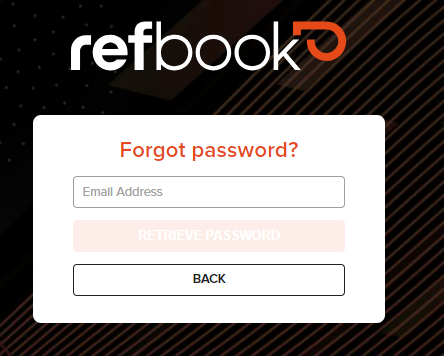
- You will receive a temporary password to your registered user email
- Use this to login again, and then immediately change/create a new password within your My Profile>Security.
- Note: the temporary password will expire within 24hours for security purposes, and the password reset process will need to be repeated if you do not create your new password.
Related Articles
Changing your password
You can easily change passwords through your user profile. This is typically required when: you have registered a new account and have been sent a temporary password that requires changing. you have forgot your password, and have recovered a ...
New user registration
Once you have a refbook user profile you’re able to receive invitations from any organisation to join their membership base Note: you do not need to be invited by an organisation in order to register. This can be done at anytime directly with ...
Registration & login troubleshooting
While the refbook registration process is simple, we understand that using a new system can sometimes take time becoming familiar with. Further, refbook cares about data security and works to ensure user's account access and sensitive information is ...
User profile details
Your refbook profile stores personal contact and officiating information. Ensure all relevant personal details are entered and kept up-to-date on your refbook profile. This information is accessible by all your connected organisations for easy ...
Logging in
Go to https://live.refbook.online to login to refbook Log in using your preferred method Using Google credentials Enter your email and password in the fields. Click 'Log In' Forget password? If you have forgotten your password, it can be reset.
Recent Articles
Updating availability when Default Organisation Availability applied
'Default Custom Availability' is an administrator setting enabled by your organisation per competition which overrides Refbook's system default model for availability. When enabled, Default Custom Availability will regard you as always available for ...
Setting availability using forms
Refbook allows you to quickly enter personal availability using special availability forms (including for tournaments and events). Your administrator will have instructed if this method is being used at your competition or event. Depending on how the ...
Viewing PDF documents on the mobile app
When attempting to view/download documents that have been uploaded by organisation, your mobile device needs to have an application locally that supports the file type, such as: Adobe PDF Reader MS Office (Word/Excel) In the phone's settings, a ...
Withdrawing from a Family Group
Go to Contact>Family Groups. This will display a list of all Family Groups you are a member of. Click the delete icon to withdraw from the Family Group and confirm. You will now be removed from the Family Group and cannot be re-added unless the ...
Editing Family Group member roles/changing Family Manager
Adjustment of members inside a Family Group can be performed by a Family Manager at any stage. This can be a common requirement if the roles are changing, or if the Family Group has been incorrectly created (for example: if the official has created ...